




Is that little “Powered by Shopify” sign in your footer bothering you? While there’s nothing wrong with it, I get it: it doesn’t exactly help make your store feel like your own brand.
The good news? You can remove “Powered by Shopify” in just a few steps, either by editing your theme’s default text or making a small change to its code. Nothing complicated, just a couple of clicks.
In this guide, I’ll walk you through both methods, show you how to remove the message from your password page as well, and help you troubleshoot if it refuses to disappear. Plus, I’ll show you a few alternatives to put in your footer instead to make your store feel even more like your own brand.
Remove “Powered By Shopify” From Your Store: Which Method Do You Need?
There are two methods to remove “Powered by Shopify” from your store: one without touching any code, or another by making a quick edit to your theme’s code.
So, which one should you choose? Here’s a 10-second test:
- Go to Online Store > Themes.
- Click the three-dot menu next to your theme, and select Edit default theme content.
- Search for “powered” in the Filter items box. If the Powered by Shopify field appears, use Method 1. If it doesn’t, try Method 2.

Standard themes like Dawn, Sense, and Refresh can typically use Method 1 (no code), while older or heavily customized themes that don’t display the field may require Method 2 (editing the theme code). That said, even newer themes may require Method 2 if the no-code approach doesn’t work.
| Shopify Theme | Recommended Method |
|---|---|
| Standard themes like Dawn, Sense, and Refresh | Method 1: No code |
| Older or heavily customized themes without the field | Method 2: Edit theme code |
And before you start worrying: no, removing it won’t hurt your SEO or send your entire site crashing down. Shopify fully allows it, even if it doesn’t always make the process as seamless as it should.
💡 Pro Tip: Some Shopify themes, including Horizon, Fabric, Savor, Atelier, and Tinker, let you remove “Powered by Shopify” directly from the visual theme editor. Just go to Online Store > Themes > Customize, find the footer’s copyright section, and turn off “Show ‘Powered by Shopify’”. No complex workarounds needed!

Method 1: Remove It Without Code (Newer Themes)
The easiest way to remove “Powered by Shopify” is through your theme’s content editor. No coding skills required here. If your theme supports this option, you can get rid of the mark in just a few clicks.
Here’s how to do it:
1. Open your theme’s content editor. To get there, from your Shopify admin, go to Online Store > Themes. Find your current theme, click the three-dot menu, and select Edit default theme content.

2. Search for “powered”. In the Filter items search box, type “powered” to find the “Powered by Shopify” field.

3. Replace the text with a single space. Just click the Powered by Shopify field and press the spacebar once. Don’t just leave the field empty: a completely blank field may cause Shopify to display the default text again.
4. Save and check your storefront by opening your store in a new tab and scrolling down to the footer. If “Powered by Shopify” has disappeared, you’re all set! If it’s still there, your theme or editor may not recognize the space as replacement text.
In that case, you can use the opportunity to replace it with actual text (something that says something about your brand) or just move on to Method 2 to remove the attribution directly from your theme’s code.
Method 2: Remove It By Editing Your Theme Code (Older Or Customized Themes)
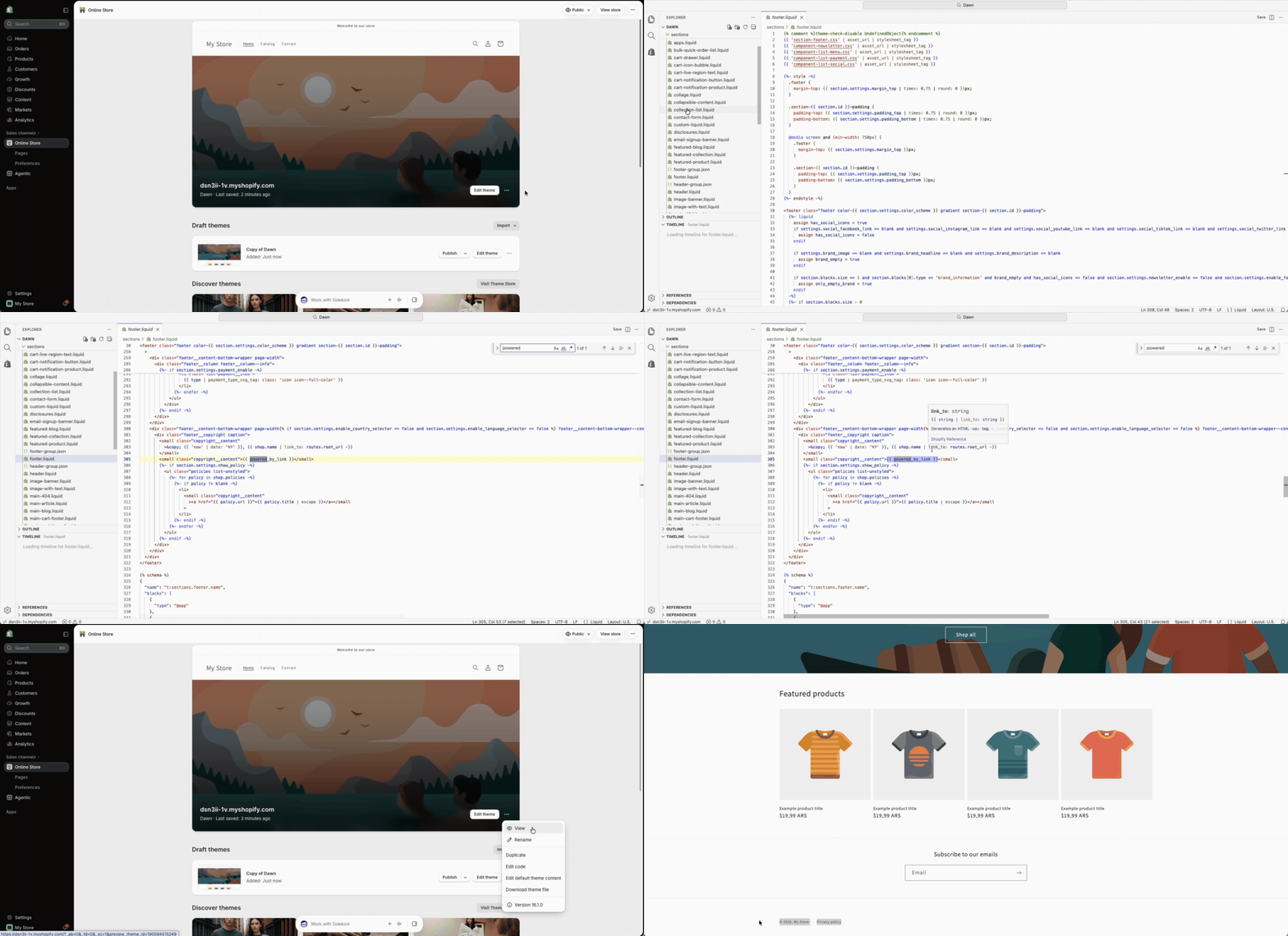
If your theme doesn’t have the option to remove “Powered by Shopify” without code, or the previous method didn’t work, you can remove it directly from your theme’s files. Don’t worry, you don’t need to become a developer overnight. Just follow these simple steps carefully:
1. Back up your first theme. In your Shopify admin, go to Online Store > Themes. Click the three-dot menu next to your current theme and select Duplicate. This creates a backup in case you need to undo any changes.

2. Open the code editor. From the same theme actions menu, select Edit code.

3. Find the footer file. In the left sidebar, expand the Sections folder and open footer.liquid. If you can’t find it, your theme might use a different file or a separate snippet. Use the code editor’s search icon to find “powered” across all theme files.

4. Remove the “Powered by Shopify” code. Find and delete {{ powered_by_link }}, which is the Liquid code that generates the attribution. Depending on your theme, you might also encounter one of these variations:
- Standard Liquid tag: {{ powered_by_link }}
- Render tag: {% render ‘powered-by-shopify’ %}
- Include tag (older themes): {% include ‘powered-by-shopify’ %}
The last two are examples of how customized themes might load a separate snippet.

5. Save and check your storefront. Click Save, then open your store and scroll down to the footer. If the attribution is gone, you’re done!
⚠️ Important: Be careful not to delete the entire copyright line when removing the Shopify attribution. Your store name, copyright notice, and other footer information should stay intact.
Also, some customized themes have separate mobile or duplicate footer files. If the message still appears on certain devices or pages, check those files for additional references.
Important! Don’t Forget The Password Page
If your store is still protected with a password, there’s one more place to check. Shopify’s password page (also called the “Opening Soon” page) has its own “Powered by Shopify” message, which you need to remove separately.
Here’s how to do it, depending on your theme:
- Without code. Go to Online Store > Themes > Edit default theme content and search for “powered” just like you did in Method 1. This time, you’re looking for the Powered by Shopify HTML field. Replace its content with a single space, and save. If the message remains, try the code-edit method instead.

- With code. Just like you did in Method 2, go to Online Store > Themes > Edit code and look for a file such as:
- sections/main-password-footer.liquid
- sections/password-footer.liquid
- Or, in older themes, layout/password.liquid.
Again, search for “powered” and remove the attribution code. For example, Dawn uses {{- ‘general.password_page.powered_by_shopify_html’ | t: shopify: shopify -}}. In this case, you’re removing the entire line.
Finally, preview your password page to make sure the message is gone.

That’s it! ✨
“Powered By Shopify” Still Showing? Quick Fixes
You followed the steps carefully, saved your settings, and the text still shows up? Don’t worry! Here are three things worth checking before trying again:
- You’re seeing a cached version. Your browser might still be displaying an older version of your storefront. Try opening your store in a private or incognito window to see if the changes appear.
- You edited the wrong footer file. Some themes use multiple footer files or snippets. Open Edit code again and search for “powered” across all theme files to make sure you haven’t missed another reference.
- A theme update brought it back. Updating or switching themes can restore the default footer attribution. Repeat the removal process and keep a note of any code changes so you can easily apply them again.
After checking these three things, that stubborn “Powered by Shopify” message should finally be gone (yay!). It had a good run, but your footer deserves the spotlight now. That’s where the most important question pops up: what it the footer for, exactly? Follow me to the next section to find out.
What To Put In Your Footer Instead
Now that you’ve (finally!) removed “Powered by Shopify”, why not use that space for something more useful? Your footer is a great place to reinforce your branding, build trust, and help customers find important information without cluttering your storefront.
So, what’s worth including in your footer?
Start with a copyright notice. It’s the boring but very important stuff that needs to be somewhere, so the footer makes a great home for it. Keep it simple with something like “© 2026 Your Store Name. All rights reserved”. No need to add more.
Same logic for the store policies. Link to your refund, shipping, and return policies so customers know what to expect.
🆕 Beginner’s Tip: Need help creating them? Check out our free refund policy, shipping policy, and return policy templates.
You can also include your contact details, like a support email, contact page, and social media handles, and a newsletter sign-up to give visitors an easy way to subscribe for updates, promotions, or exclusive offers. This way, you’re using the footer not just to give information, but to capitalize on new leads and grow your community.
Finally, you can display the icons of the payment methods you accept to help customers quickly know how they can pay.
Remember: a professional footer doesn’t have to be packed. Keep it clean, useful, and consistent with your brand.
Want A Ready-Made, Branded Store Instead?

If you want to skip the hassle of setting up your Shopify store from scratch, BuildYourStore’s free AI store builder gives you a ready-made Shopify store in minutes. It includes a professional and customizable design, preloaded products, and essential pages already set up.
Just choose your niche, connect it to Shopify, let AI handle the heavy lifting, and then add your final touches to make it truly yours. You can build your store for free and see how it works.
Frequently Asked Questions
Can you remove ‘Powered by Shopify’ on the free trial or Basic plan?
Yes, Shopify lets you remove it on all plans, including the free trial. It’s not locked behind a paid tier.
Where is the ‘Powered by Shopify’ text controlled in the theme?
It lives in the theme’s Liquid files, usually in footer.liquid or a dedicated powered-by-link.liquid snippet depending on the theme.
Does removing it require editing code?
On most themes yes — a small Liquid edit. Some themes let you hide it through the theme editor without touching code, but that’s less common.
How do you remove it from the password or coming-soon page specifically?
It’s in a separate file, usually password.liquid. You need to edit that file independently since it doesn’t share the same footer as your main storefront.
Will removing this text break anything else in the footer?
No. It’s a standalone snippet with no dependencies. Removing it only affects that line of text.
Can you replace ‘Powered by Shopify’ with custom text instead of deleting it?
Yes. Instead of deleting the line, you can replace the Liquid output with any plain text or HTML you want — your brand name, a copyright line, or anything else.
Is It Allowed To Remove “Powered By Shopify”?
Yes, Shopify officially allows store owners to remove the “Powered by Shopify” attribution from their storefronts. It’s completely optional, and you don’t need to upgrade to a more expensive plan just to remove the message.
Will Removing It Affect My SEO Or Store Speed?
No, removing “Powered by Shopify” shouldn’t have any meaningful impact on your SEO rankings or loading speed. It’s simply a small footer attribution, so removing it is mainly a branding decision rather than an SEO or performance optimization.
Why Did “Powered By Shopify” Come Back After A Theme Update?
Theme updates can overwrite previous code customizations, bringing back the default “Powered by Shopify” attribution. If that happens, simply repeat the removal process using the methods covered above. Keeping a record of your theme changes can save you some detective work next time!
Make Your Shopify Store Your Own
Removing “Powered by Shopify” is a small change, but it can totally make your store look more professional. As I’ve covered throughout this guide, the process is super easy, whether you use the no-code method or make a quick edit to your theme’s code.
Just remember that after the “Powered by Shopify” sign is gone, there’s still some more work left to do to make your footer truly yours, like adding policies, copyright, contact details, and even next steps to become a part of your community.
And if you’re not quite happy with your current storefront, why not try something new without starting from scratch? BuildYourStore generates a ready-to-sell Shopify store in just a few clicks. Create your store for free, explore the features, customize it to match your brand, and see how it works for you. The best part? It only takes a few minutes!
Want to discover more tricks to customize your Shopify store? Here are a few other reads you might find helpful:


